OCR: How to Turn a Scan or Photo into Text
You have a photo of a book page or a scan of a contract, but you need text you can copy, search and edit. Retyping it by hand is an hour of work; OCR does it in seconds. Let's unpack how a computer "reads" the letters in an image, why it sometimes gets them wrong, and how to get a clean result — right up to a searchable PDF.
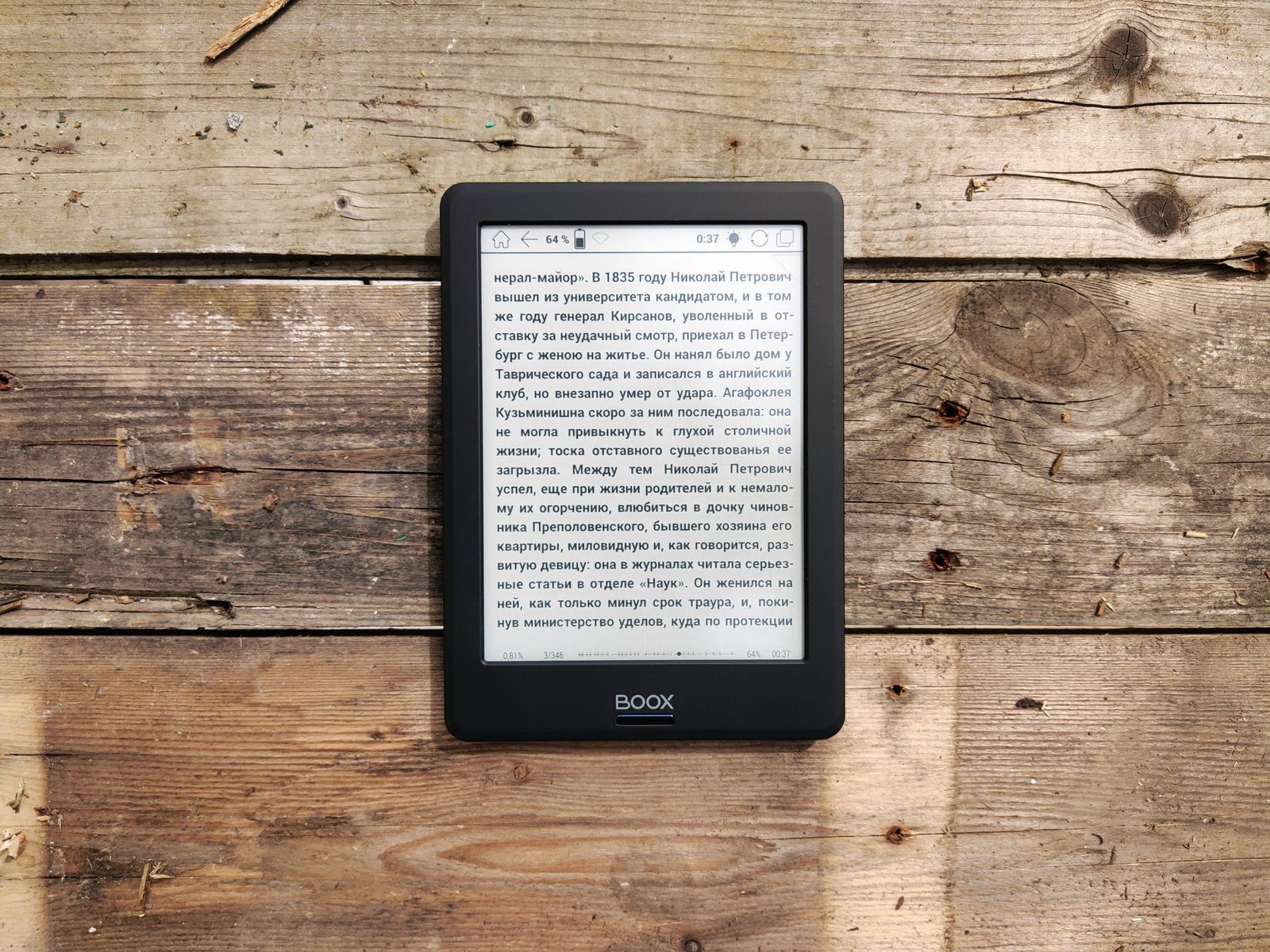
What OCR is in plain English
OCR (Optical Character Recognition) is a technology that turns an image of text into actual text. The key word is "image."
Here's the core of the problem. When you photograph a page or scan a document, the result — to a computer — is just a grid of colored dots. It "sees" dark and light pixels, but it has no idea that this squiggle is the letter "A" and that one is "B." To it, a photo of text and a photo of a cat are equally meaningless: both are just pixels. You can't copy a word from such an image, find a phrase in it, or fix a typo.
OCR solves exactly this: it finds the letters in the image and converts them into real characters — the kind you can select with your mouse, copy, drop into search, and edit. It's essentially a bridge between "a picture of text" and "text."
In short
A scan or photo of a document is an image, not text. OCR "reads" the letters in the image and turns them into editable text. Without OCR, a scanned PDF looks like a document but you can't search it or copy from it.
How a computer "reads" letters
There's no magic here — just a clear chain of steps. In simplified form, OCR works like this:
- Image preparation. The engine straightens a skewed page, removes noise and shadows, boosts contrast, and usually converts the image to black and white — that makes the letters easier to separate from the background. This stage is called preprocessing, and it's critical to the result.
- Layout analysis. The program works out where the text is on the page versus images and tables, and splits the text into blocks, lines and individual characters.
- Character recognition. For each isolated character, the engine compares it to patterns and decides which letter or digit it is. Modern systems use neural networks trained on millions of examples for this.
- Dictionary check. Finally the result is "tidied up": OCR checks against the language's dictionary and context, fixing obvious errors (for example, "rn" mistaken for "m").
That's exactly why it matters to tell OCR the document's language: with the right dictionary, the engine recognizes text far more accurately than "blind."
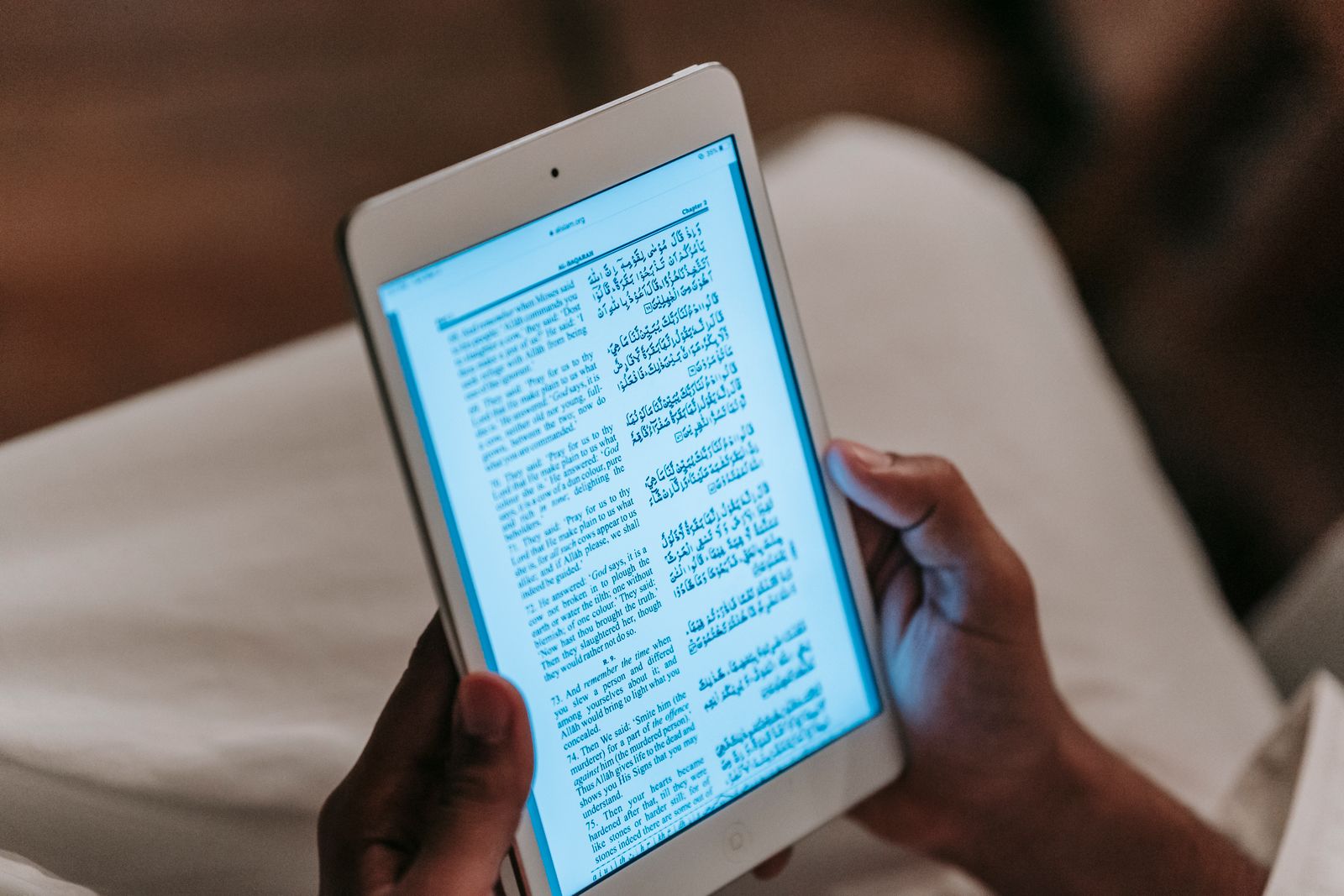
The tools: Tesseract, ABBYY, Google
There are many recognition engines, but in practice you'll meet three main players — for different tasks and budgets.
Tesseract is the legendary free, open-source engine developed by Google. It supports over a hundred languages, is accurate on printed text, and underpins a huge number of free OCR apps and online services. Its strength grows noticeably with good image preprocessing.
ABBYY FineReader is paid professional software, known above all for layout preservation: it carefully reconstructs tables, columns and formatting rather than just "pulling out" bare text. It's the choice for anyone who needs a document as output, not a solid wall of words.
Google Docs and online services. If you only need to recognize one or two files and skip installing software, online is easiest. Google Docs has OCR built in: upload an image or PDF to Drive, open it in Docs, and the text is recognized automatically.
An accuracy benchmark
On clean printed text, the leading engines (Tesseract, ABBYY FineReader) deliver around 98–99% accuracy. But that's for a quality scan. On a bad photo the number drops sharply — the source quality decides almost everything.
What accuracy depends on
The big secret of good OCR is simple: the better the source image, the fewer the mistakes. Let's break down what actually affects the result.
- Resolution. The standard for documents is 300 DPI (dots per inch). At that density, letters are drawn in enough detail for the engine to tell them apart confidently. Below 200 DPI accuracy falls noticeably.
- Straightness and cleanliness. A skewed page, edge shadows, spots and noise throw recognition off. Straightening and cleaning (that same preprocessing) can raise accuracy by tens of percent.
- Contrast. Sharp dark text on a light background is ideal. Faint text, or text that blends into the background, is hard for the engine.
- Type of text. Printed text is recognized excellently; handwriting is noticeably worse and not always reliable.
- Language. The correct language and dictionary sharply improve results, especially on mixed or non-Latin text.
Searchable PDF: the invisible text layer
OCR has one especially elegant output — the searchable PDF. The idea is brilliant in its simplicity: the engine leaves the scanned page image exactly as it is, but on top of it adds an invisible layer of recognized text, precisely aligned with the letters in the image.
What does that give you? On the surface the document still looks like an ordinary scan — with all its stamps, signatures and original layout. But now you can search for words, select and copy text as if it were a regular electronic document. For archives, libraries and record-keeping this is the gold standard: the look of the original is preserved, and the content becomes searchable.
That's exactly how the services that turn a mountain of scanned paper into a convenient, searchable archive work. And if you need not a PDF but just "bare" text, OCR will hand you that too, ready to paste into an editor or spreadsheet.

How to recognize text: step by step
Let's condense it into a practical routine that works with almost any tool.
Get a sharp source
Scan at 300 DPI or photograph the text straight, in good light, with no glare or blur.
Pick a tool and language
An online service, Google Docs, Tesseract or ABBYY — and be sure to set the document's language.
Run the recognition
The engine preps the image, finds the letters and turns them into text or a searchable PDF.
Check the result
Skim the text and fix the rare mistakes — especially in names, numbers and terms.
Pull the text out of a document in seconds
Need to extract text from a PDF without retyping? The FormatZ converter turns a PDF into editable text right in your browser — no install, no sign-up.
Extract text from PDFIf a scan is stored as images and you need a full document, our PDF to Word converter and the guide on converting PDF to Word will help. For the format built for scanned books that often goes hand in hand with OCR, read what DjVu is.