Which Format to Save In Photoshop: PSD, PSB, TIFF, PDF
You finish a layout, hit "Save As" — and Photoshop dumps a list of two dozen formats on you. PSD? TIFF? And what on earth is PSB? Let's settle this once and for all: what each format is built for, so you never guess again and never lose your layers.

The golden rule: Save ≠ Export
Before arguing about formats, understand the fork in the road. Photoshop has two fundamentally different actions, and they live in different parts of the File menu.
Save As is about the working file. Here live the formats that remember everything you did: layers, masks, smart objects, text, styles. This is your source, the one you'll reopen tomorrow to fix a headline or nudge a logo. That's PSD, PSB, TIFF and Photoshop PDF.
Export As (and Save for Web) is about the finished picture. Photoshop takes all your layers, flattens them into a single flat image, and hands you a light file — PNG, JPG, GIF or SVG — that you can upload to a site, drop into a chat or show a client. The layers are gone: the result can no longer be "taken apart."
One line to remember
Working file — you save it (PSD/PSB/TIFF/PDF, layers alive). Finished image — you export it (PNG/JPG, layers flattened). Keep the source, send out a flat copy.
This article covers the first half of that fork: the formats you save into. For exporting a finished picture for the web, we have a separate deep dive.
PSD — the layered workhorse
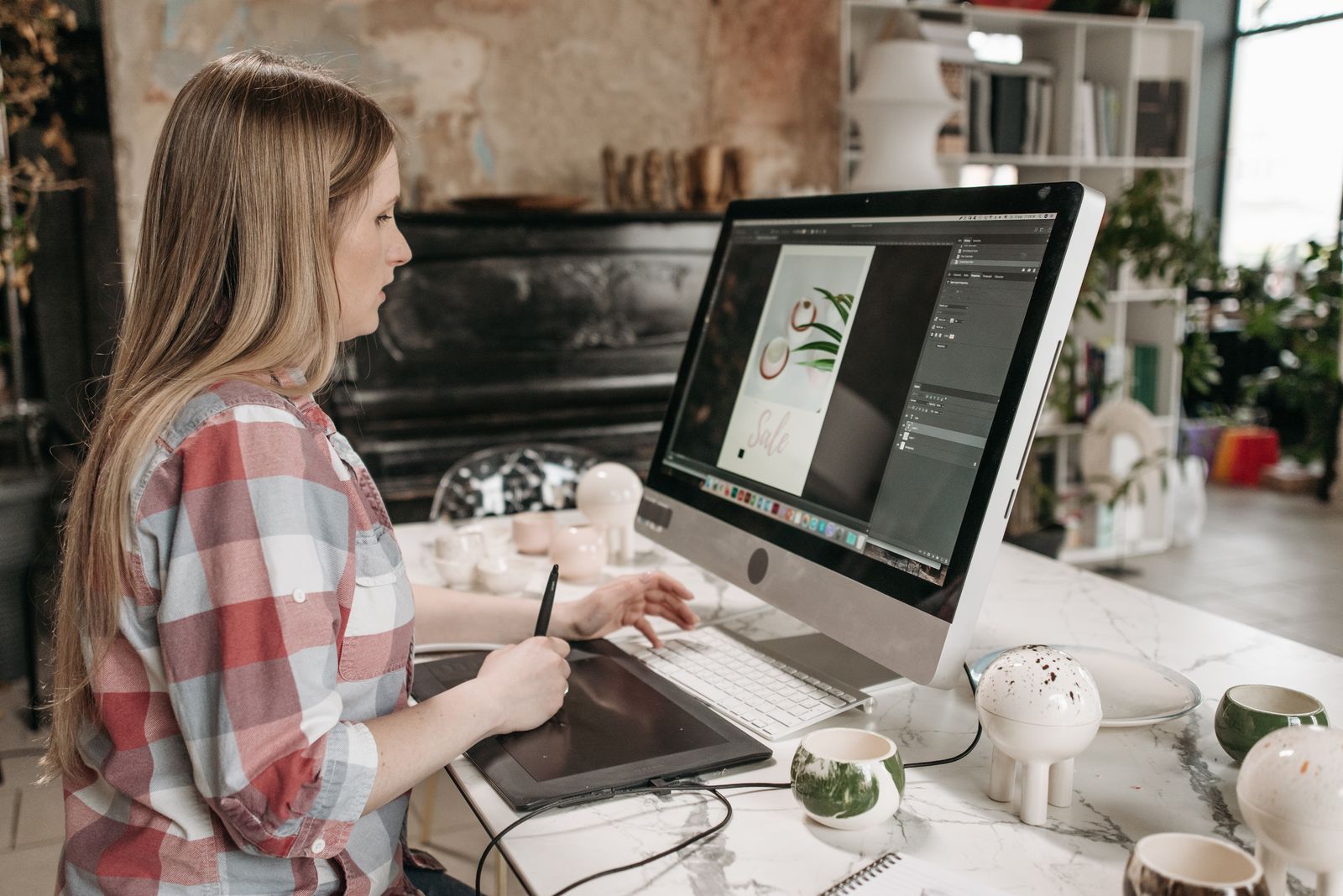
PSD (Photoshop Document) is the default format and the right call for 95% of projects. It stores the entire state of your document: layers and their order, blend modes, masks, adjustment layers, smart objects, editable text, guides and more. Open it tomorrow and you pick up exactly where you left off.
PSD has two hard limits worth knowing up front:
- Side length — up to 30,000 pixels. For banners, posts, covers and most layouts that's plenty, with room to spare.
- File weight — up to 2 GB. Heavy collages made of dozens of RAW shots on separate layers can bump into this limit.
If you shoot photos and want to understand how layers, masks and smart objects work inside a PSD, see our breakdown of the PSD file structure. And for what PSD even is versus a finished picture, read "What Is PSD".
PSB — when PSD hits the ceiling
PSB (Large Document Format, "Photoshop Big") is the same PSD, minus the tight walls. It exists for exactly one reason: to handle giant files that PSD physically can't.
| Spec | PSD | PSB |
|---|---|---|
| Max side | 30,000 px | 300,000 px |
| Max weight | 2 GB | up to 4.2 EB* |
| Layers, masks, smart objects | Yes | Yes |
| Compatibility | Very wide | "Big-file" editors only |
* An effectively limitless format ceiling; your real cap is your disk and RAM.
When do you need PSB? A 3×2-metre print poster at 300 ppi, a wide panorama, a huge texture map, a multi-layer composite where the layer count runs into the hundreds. Photoshop will sometimes nudge you to switch to PSB once you exceed the PSD limits.
The downside of size
Far from every program understands PSB. Many free viewers and even some editors open PSD but choke on PSB. So don't reach for PSB "just in case" — use it only when you've genuinely hit a PSD limit.
TIFF — for the print shop and the archive
TIFF is the universal heavyweight for when maximum pixel fidelity and print-world compatibility matter most. It has three strengths.
Lossless compression
TIFF can shrink using LZW or ZIP — the file gets smaller while the quality stays exactly the same, down to the last pixel. No JPEG-style artifacts.
Understood everywhere
TIFF is the de facto standard in print, scanning and archiving. Any print shop and any RIP accepts it without a second thought.
Layers, optional
You can tick "Save Layers" when saving. But print shops usually get a flattened TIFF — it's the safer bet.
Rule of thumb: PSD to work, TIFF to send to print or park in a long-term archive. How to prep a TIFF for the press is covered in "TIFF for Print and Scanning". And to turn a finished layout into a TIFF, use the PSD → TIFF converter.
Photoshop PDF — a layout that stays editable
The most underrated format on the list. PDF usually reads as "a flat document for viewing," but Photoshop PDF has a superpower — the "Preserve Photoshop Editing Capabilities" checkbox in the save dialog.
When it's on, Photoshop tucks a full copy of your PSD inside the PDF: layers, editable text, vector shapes. From the outside it's an ordinary PDF — a colleague opens it in any viewer and sees the finished image. But if you reopen that same file in Photoshop, all the layers are right where you left them. One file, two worlds.
Photoshop PDF shines when you need to show a client a layout for approval or send a finished file to print: the recipient sees the result, and you keep your source. Build a PDF from a layout with the PSD → PDF converter.

Cheat sheet: pick one in 5 seconds
Lost? Just answer one question: "What am I doing with this file right now?"
| Task | Format | Why |
|---|---|---|
| Keep editing tomorrow | PSD | Layers and text alive, opens everywhere |
| File is enormous (poster/panorama) | PSB | Removes the 30,000 px and 2 GB caps |
| Sending to a print shop | TIFF | Lossless, accepted everywhere |
| Client sign-off on a layout | Photoshop PDF | Looks like a PDF, layers inside |
| Web publishing, sending a photo | JPG / PNG | Light, opens on anything |
Handing off a finished file without Photoshop
A common situation: you have a PSD, but the recipient needs a plain image — they don't have Photoshop and don't need it. Sending the source is pointless: it simply won't open for them. The fix is to convert the PSD to whatever format the recipient needs.
Need transparency?
A logo, an icon, a cut-out object — use PSD → PNG: the alpha channel survives.
A plain photo or preview?
For a light image with no transparency, PSD → JPG is ideal.
A document for approval?
To send a layout for viewing and print — PSD → PDF.
Turn a PSD into a finished image in seconds
The free FormatZ converter opens your PSD right in the browser and saves it as a PNG with transparency — no Photoshop install, no sign-up.
Convert PSD to PNGThe full set of directions — PSD to JPG, PDF, TIFF and back — is always on the all formats page. And to walk through any of these conversions step by step, see the guide "How to Convert PSD".
Frequently asked questions about saving in Photoshop
Read next
PhotoshopHow to Export from Photoshop for the Web
Export As vs Save for Web, JPG quality and why sRGB matters.
 Photoshop
Preparing for Print in Photoshop
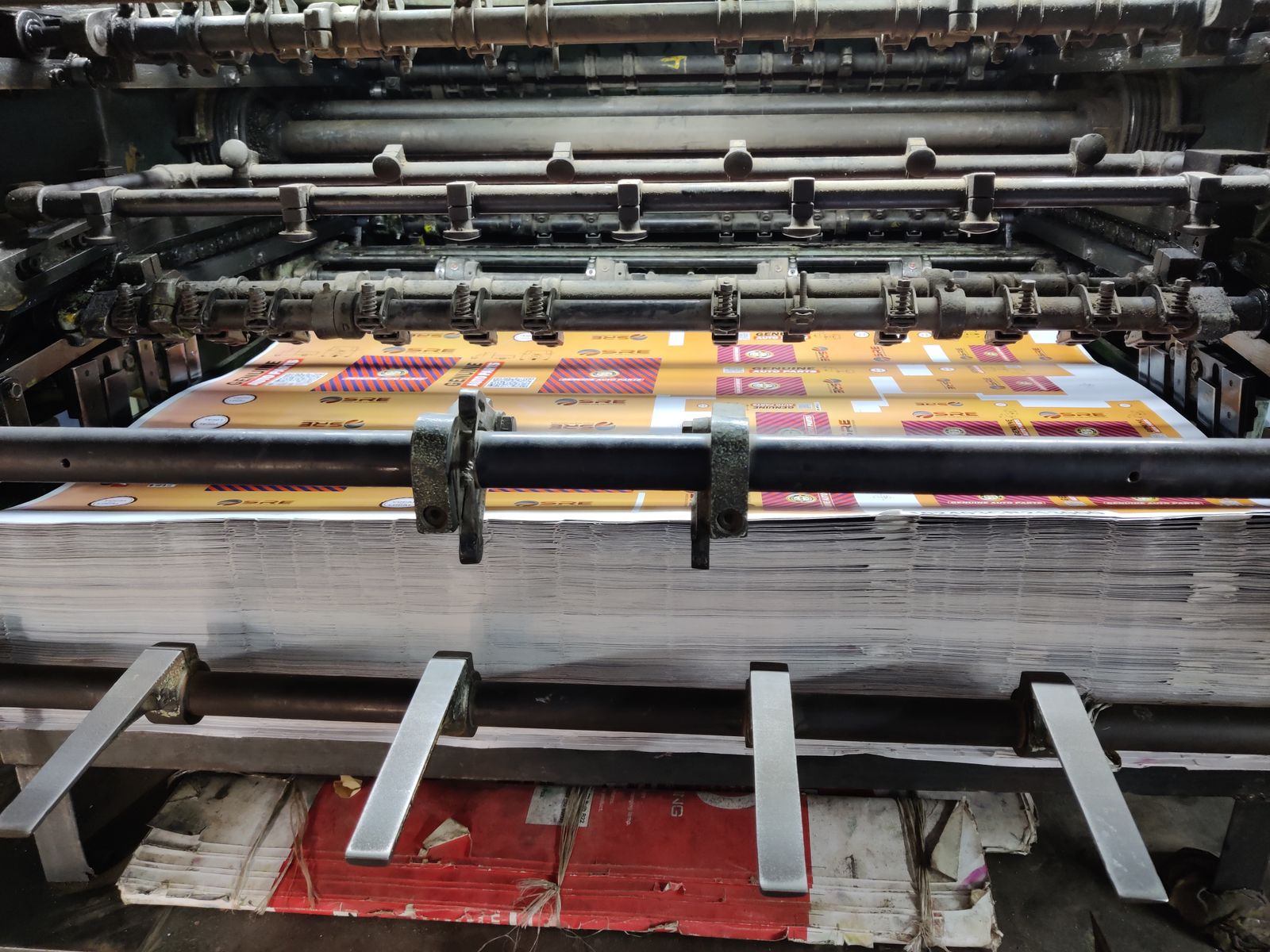
300 DPI, CMYK, bleed and PDF/X export with no surprises.
PSDWhat Is PSD? The Layered Photoshop Format
Why the source file exists and how it differs from a finished image.