EXIF Metadata: What Your Photo Says About You
You post an ordinary selfie or a photo of an item for sale — and along with the picture you publish your home's exact address, your phone model, and the time of the shot. Sounds paranoid? In fact it's baked into every photo, and it's called EXIF. Let's unpack what hides inside an image and how to wipe it in under a minute.

What EXIF is in plain English
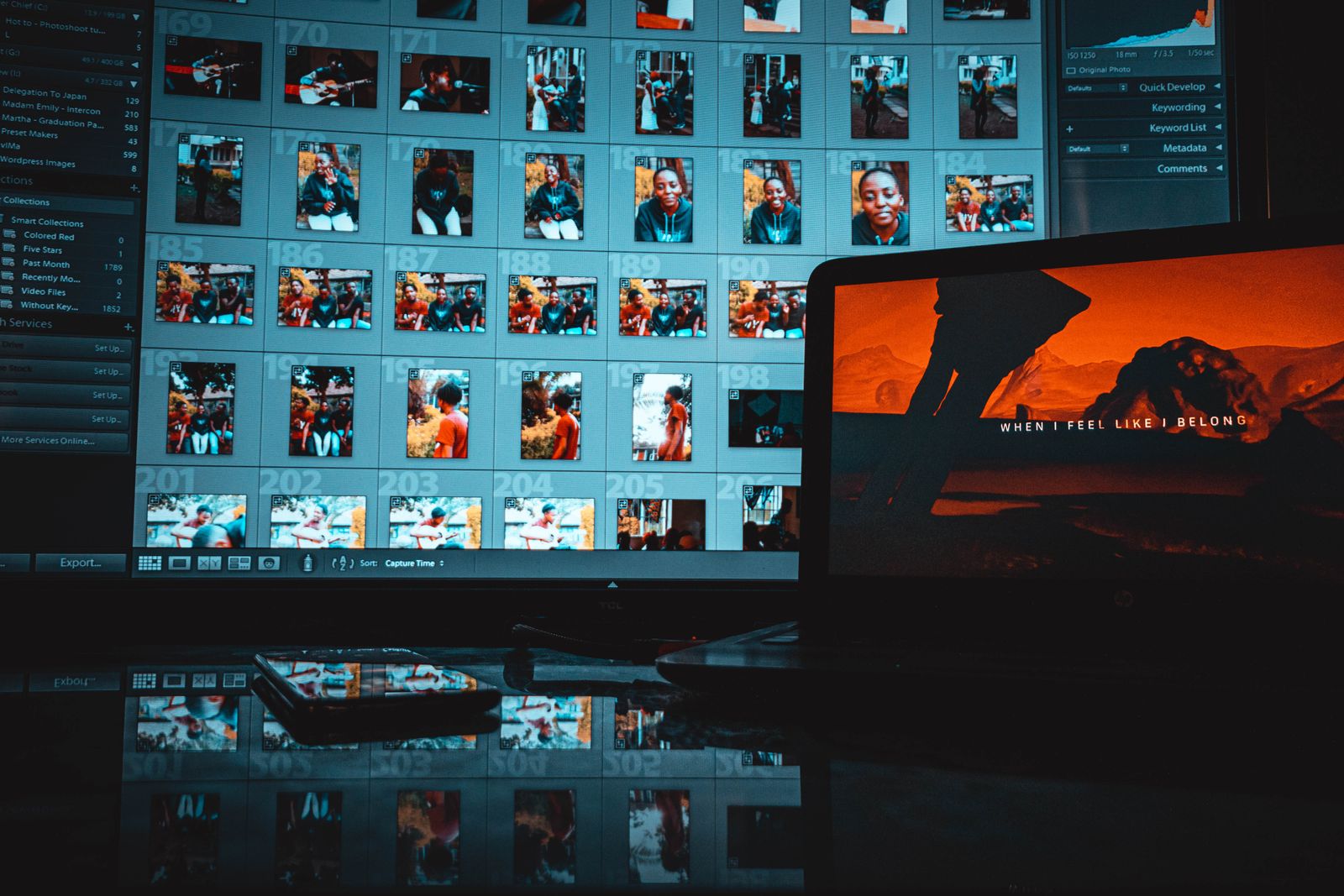
EXIF (Exchangeable Image File Format) is a photo's hidden passport, which the camera or smartphone writes straight inside the image file, in a hidden technical section of the file. The picture is what you see. EXIF is what the photo knows about itself and the circumstances of the shot.
The standard was originally devised for photographers: it's handy when a shot "remembers" its settings — shutter speed, aperture, ISO. But over time phones began adding far more, and an innocent technical block turned into a source of private data most people never suspect.
In short
EXIF is hidden data inside a photo: when, with what, and (often) where it was taken. It isn't visible in the picture, but any program can read it. Before publishing a shot, this data is worth checking and, if needed, wiping.
What a photo actually stores
The set of EXIF tags depends on the device, but a typical phone photo carries a surprisingly detailed dossier inside:
Most of this is harmless. One line is dangerous — the GPS coordinates. If location services were on at capture time, the photo remembers the spot to within a few meters: latitude, longitude, sometimes altitude. And that point travels with the file wherever you send it.

The big risk: GPS in a published photo
Picture an everyday situation. Someone is selling an item on a classifieds site and photographs it at home. The buyer downloads the photo, opens the GPS tags — and sees the seller's exact address. The whole thing takes under thirty seconds and a free online tool.
From there, a whole set of scenarios you should know about:
- Home address. A photo taken in your apartment and posted on a forum, a dating profile or a listing reveals where you live.
- Children. Shots of a child in the yard or near a school give away where they are every day.
- Routine. A series of photos from the same places adds up to a map of your habits: home, work, gym, café.
This isn't a theoretical risk. There are documented cases of people being tracked and stalked precisely through geotags in published photos. The attack needs no hacking — just downloading the picture and checking its GPS fields.
A simple safety rule
Before publishing a photo taken at home, at work, or in any personal place — strip the metadata. This matters most for shots strangers will see: listings, forums, profiles, public accounts.
Do social networks strip metadata?
The good news: on upload, major social networks usually re-save the image into their own format and strip most of the EXIF, including GPS. So a photo in your Instagram or Facebook feed is most often already "sanitized."
The bad news: you can't rely on it. Platform behaviour is inconsistent and changes without announcement, messengers and forums act differently, and sending a photo "as a file/document" or by email keeps the metadata intact. The same shot posted to a feed may be clean, while sent into a chat as a file it carries every coordinate.
The takeaway is simple: don't trust someone else's servers with the privacy of your data. It's safer to clean the photo yourself before it goes anywhere.
How to remove EXIF: four ways
Metadata can be wiped in several ways — from the operating system's built-in tools to automatic cleanup on conversion. Here are working options, from simple to universal.
Windows, built in
Right-click the photo → "Properties" → the "Details" tab → at the bottom "Remove Properties and Personal Information" → "Create a copy with all possible properties removed."
Disable the geotag in advance
In your phone's camera settings, turn off location access (on iPhone: Settings → Privacy & Security → Location Services → Camera → "Never"). Then GPS simply won't enter new shots.
Convert to another format
Re-encoding a photo — say JPG to PNG — usually doesn't carry the EXIF tags over. The metadata disappears on its own.
Dedicated tools
Mac, iOS and Android have no built-in "cleaner" — dedicated apps and utilities like ExifTool come in handy for bulk and precise cleanup.
Why conversion is the easiest path
Of all the methods, conversion is probably the most seamless and convenient. When you re-encode an image into another format, the program builds a new file from the pixels alone, and the EXIF tags, including GPS, usually just aren't carried into the result.
You get a pleasant two-in-one: you change the format to suit your task and remove the geolocation in a single step. For example, the JPG → PNG converter hands back a clean image with no coordinates. And if your main goal is to cut weight, look at re-encoding to WebP: it usually strips metadata too while making the file lighter.
Clean your photo of hidden data
Convert your shot with FormatZ — the in-browser converter rebuilds the image without the extra EXIF tags and GPS coordinates. Free, no install and no sign-up.
Convert JPG to PNGAnd if you also need to cut the weight of your shots, our guide on how to compress images explains how to do it right.
When metadata is useful
It would be dishonest to claim EXIF is purely evil. In the right context it's genuinely useful:
- For photographers the metadata helps dissect great shots: you can see which settings produced a good frame.
- Cataloguing. Dates and geotags are handy for a personal archive — photos sort themselves by time and place in apps like Google Photos.
- Authorship. You can write copyright and the author's name into EXIF — useful for protecting your rights to a shot.
So the rule isn't "always delete," but "delete before publishing to strangers." For your personal archive, let the metadata stay — it's working for you.
To better understand the formats it's convenient to convert into, take a look at our breakdown of PNG vs JPG.
Frequently asked questions about EXIF
Read next
 How-to
How to Compress Images Without Losing Quality
Quality 82%, WebP and AVIF — many times less weight.
 How-to
Batch File Conversion: Process Hundreds of Files at Once
One set of settings for a whole folder — and cleanup too.
 Deep Dive
HDR Photos: Why They Look Off and How to Convert Them
Gain maps, tone mapping and the path to a normal SDR shot.