How to Open PSD Without Photoshop: Free Ways
Photoshop runs on a subscription, and you were sent a single PSD that you need right now. Paying for a whole program for one file is overkill. The good news: you can open a PSD for free — with layers or just as a picture. We've gathered every method that actually works and pointed out which to pick for your situation.

Answer one question first
Before downloading anything, be honest with yourself: do you need the layers, or just the picture? Your whole choice of tool hangs on that — and answering it can save you a lot of time.
- You only need the picture (to view, send, drop into a document or a website) — no heavy editor required. A viewer or a quick conversion to PNG/JPG is enough.
- You need the layers (move an element, change the text, hide a layer) — then you need a full editor that understands the PSD structure.
Tip
Eight times out of ten people just want the final picture, not layer editing. If that's you, skip straight to the conversion section — it's the fastest way.
Photopea — Photoshop in a browser
Photopea is a free online editor that looks and works almost exactly like Photoshop, but opens right in a browser tab. Nothing to install: visit the site, drag in your PSD, and you'll see all the layers, masks and text exactly where they belong.
This is the best option when you don't have Photoshop but still need the layers. Photopea reads PSD very faithfully and can even save back to the format. A big plus for privacy: the file is usually processed in your browser rather than shipped off to someone else's server.
GIMP — the free all-rounder
GIMP is a powerful free editor for Windows, macOS and Linux that many people call the leading Photoshop alternative. It opens PSD files with layers and lets you edit them: move, hide, change opacity.
Be ready for some caveats: the most complex things — adjustment layers, Photoshop's signature effects and smart objects — sometimes don't render perfectly in GIMP, or get flattened into a regular layer. For simple and mid-level layouts that's plenty; for fine retouching with dozens of effects, Photopea is the safer bet.
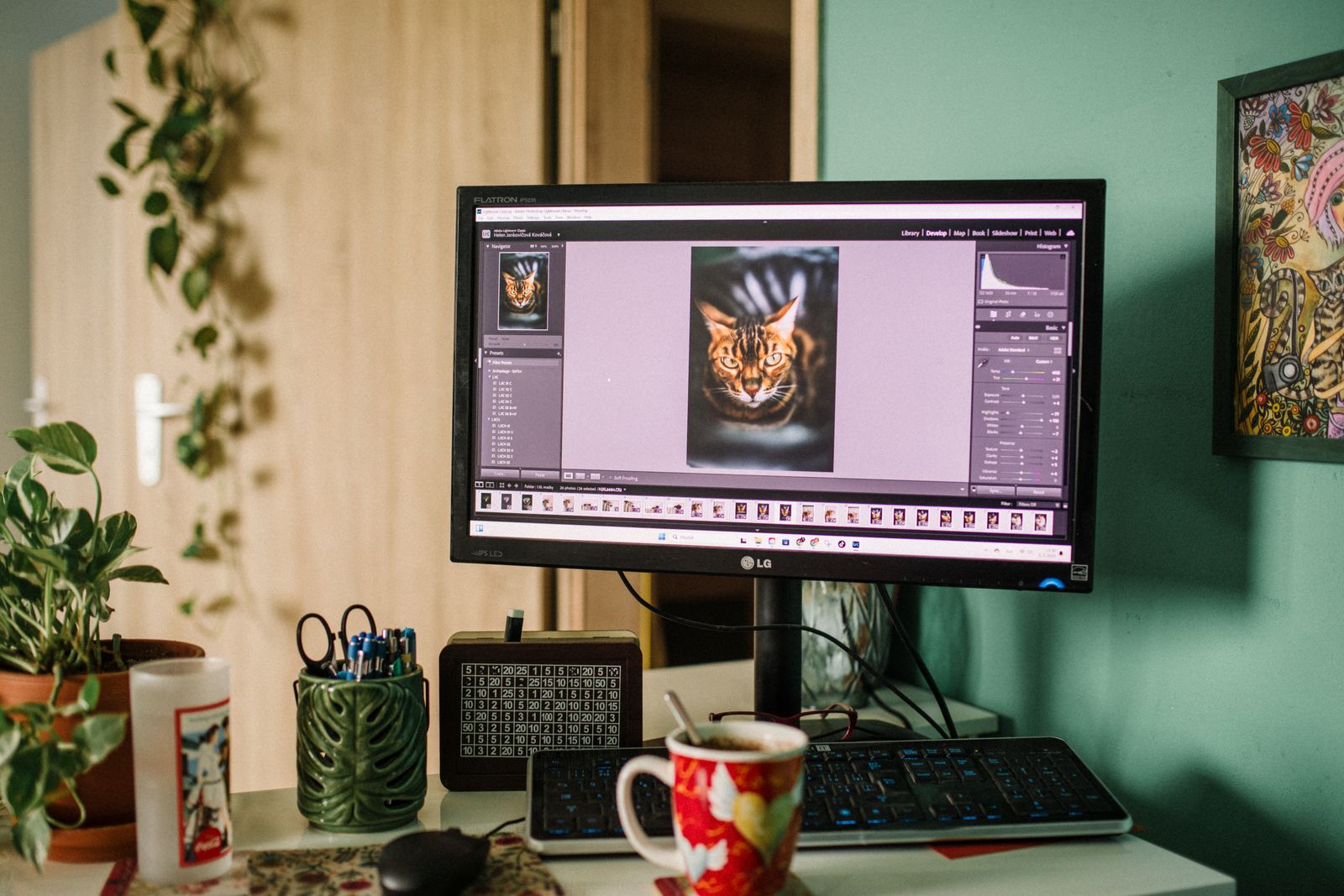
Krita and Paint.NET
Two more worthy free programs:
- Krita — an editor built for digital painting and illustration. It opens PSD files with layers nicely, especially when the file was painted by an artist. A favourite of illustrators and concept artists.
- Paint.NET — a lightweight Windows program. It doesn't open PSD on its own, but with a free add-on (the PSD Plugin) it happily reads layered files. A good pick if you want a simple, fast editor with no bloat.
Just want to look: XnView and others
If all you need is a glance at the image, installing an editor is silly. Many viewers show the flattened picture from a PSD straight away:
- XnView MP — a fast, free viewer that opens PSD and hundreds of other formats and can batch-convert.
- IrfanView — the legendary "lightweight" Windows program also reads PSD (with a basic plugin).
- Built-in OS tools — sometimes even your file manager shows a PSD preview, because the file has an embedded preview image inside.
The fastest route: conversion to PNG or JPG
If you don't need layers, the fastest and most universal way is to convert the PSD to PNG or JPG. The result opens literally everywhere: on a phone, in email, in any messenger, in Word and in a browser. And all of it without installing a thing.
Open a converter
Drag your .psd into an online converter — it runs right in the browser.
Pick a format
PNG for transparency and top quality. JPG for a light file to email or post on the web.
Download the result
The layers are flattened into a single picture automatically — the finished file opens in any program.
Open your PSD right now — no install
Drag the file into the free FormatZ converter and get a finished PNG in a couple of seconds. Layers are flattened automatically and transparency is kept.
Convert PSD to PNGNeed a light file to send around? Then PSD to JPG is the better choice. And to understand exactly how these formats differ and which to pick, see our breakdown — PSD vs PNG and JPG.
Which to choose: a summary

| Tool | Layers | Install | Best for |
|---|---|---|---|
| Photopea | Yes | None (browser) | Editing layers without Photoshop |
| GIMP | Yes | App | A full free editor |
| Krita | Yes | App | Illustration and painting |
| Paint.NET | With plugin | App (Windows) | A simple editor |
| XnView / viewer | No | Lightweight | Just looking |
| Converter to PNG/JPG | No | None (browser) | You only need the picture |
One last piece of advice
Whatever you choose, don't lose the original PSD. Once you flatten it to PNG or JPG you get a "flat" picture with no layers — there's no editing it back layer by layer. Keep the original somewhere safe.
Frequently asked questions
Read next
 Basics
What Is PSD? The Layered Photoshop Format
Why a PSD is a project, not a picture, and what's inside it.
 Guide
GuideHow to Convert PSD to PNG, JPG or PDF the Right Way
Pick the right format for the job and keep your quality.
 Comparison
PSD vs PNG and JPG: Source File vs Final Image
When to use which format, and why you must never confuse them.