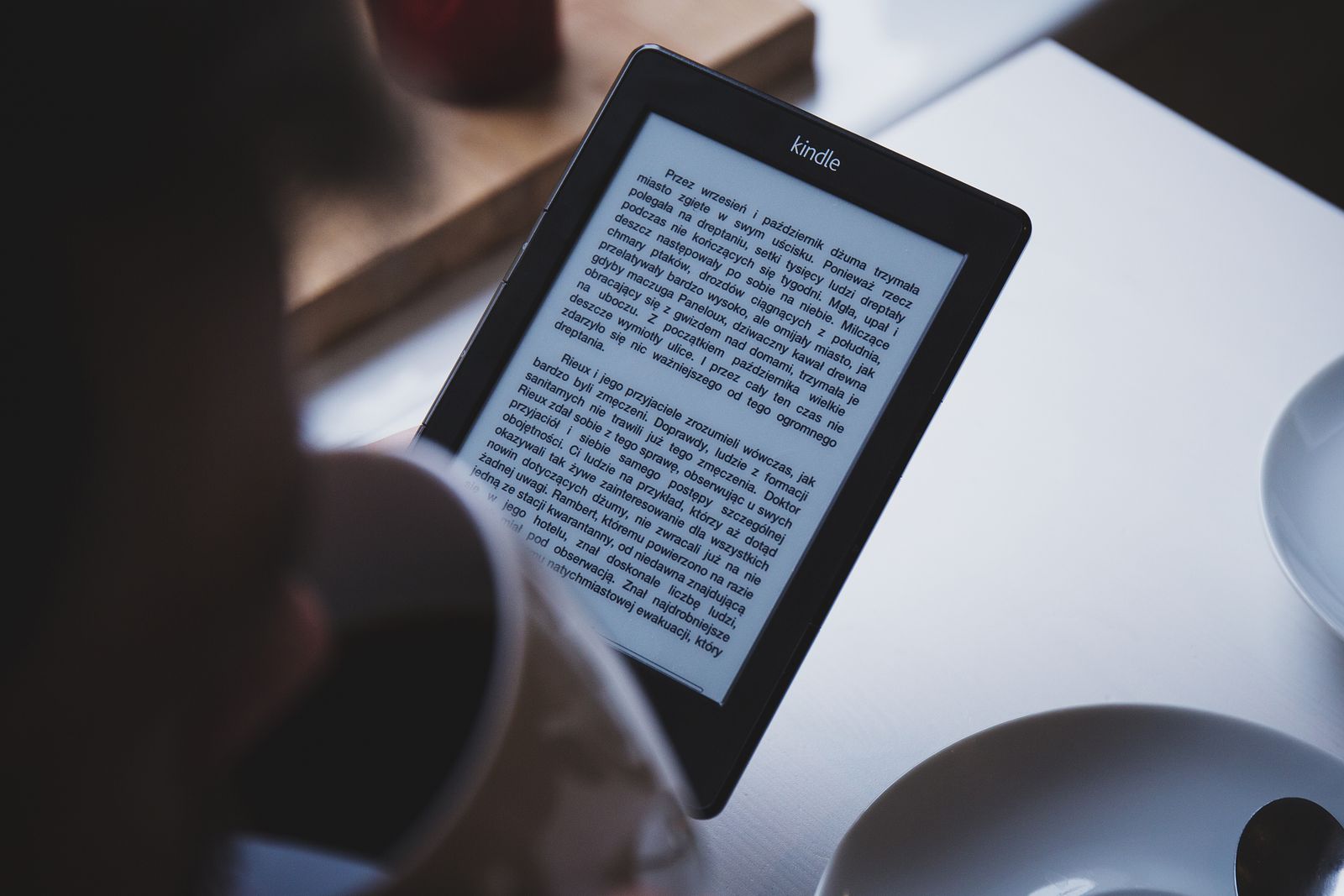
How to Create an Ebook (EPUB/FB2)
You have a manuscript in Word and a dream of seeing it on a reader's screen next to real books. Good news: you can build a proper ebook for free, with no layout skills required. We'll walk you from document to finished EPUB — with a cover, table of contents and metadata — and show three tools to choose from, from "one click" to full control.

Where to start: choosing the format
Before building anything, decide what format your book will live in. For the vast majority of cases the answer is EPUB: it's the international standard read by almost every device and store, and Kindle accepts it through Send to Kindle with automatic conversion. If you haven't read about the format differences yet, take a look at our EPUB vs PDF vs FB2 breakdown.
The logic is simple: make EPUB as your main, "master" format, and generate everything else from it when needed. Publishing for a Russian-speaking audience and libraries? Also build an FB2 version — it's popular there. Need a copy for print or reading on a big screen with a fixed layout? Convert the EPUB to PDF.
In short
Build your book in EPUB — it's the universal source. Add FB2 for CIS libraries and PDF for print. All three formats come easily from a carefully prepared document.
Preparing the manuscript in Word
This is the most important stage, and beginners usually skip it — to their cost. The quality of your future book is 80% determined by how cleanly and structurally the source document is laid out. Any converter merely carries over your structure; if there is none, it won't invent it for you.
The key rule — use the built-in heading styles. Don't make a chapter title just large bold text by hand: apply the "Heading 1" style to chapter titles and "Heading 2" to subsections. It's from those styles that the program later builds the table of contents automatically and the correct jumps between chapters.
- Separate chapters with a page break (not five blank paragraphs) — so each chapter starts on a new page in the book.
- Remove manual formatting: extra spaces for indents, forced line breaks inside a paragraph, double blank lines. In a reflowable book all of this breaks the layout.
- Insert images as standalone objects, rather than anchoring them to text with complex wrapping.
The cleaner the document, the less you'll fix afterwards. A tidy DOCX is already 90% of the win.
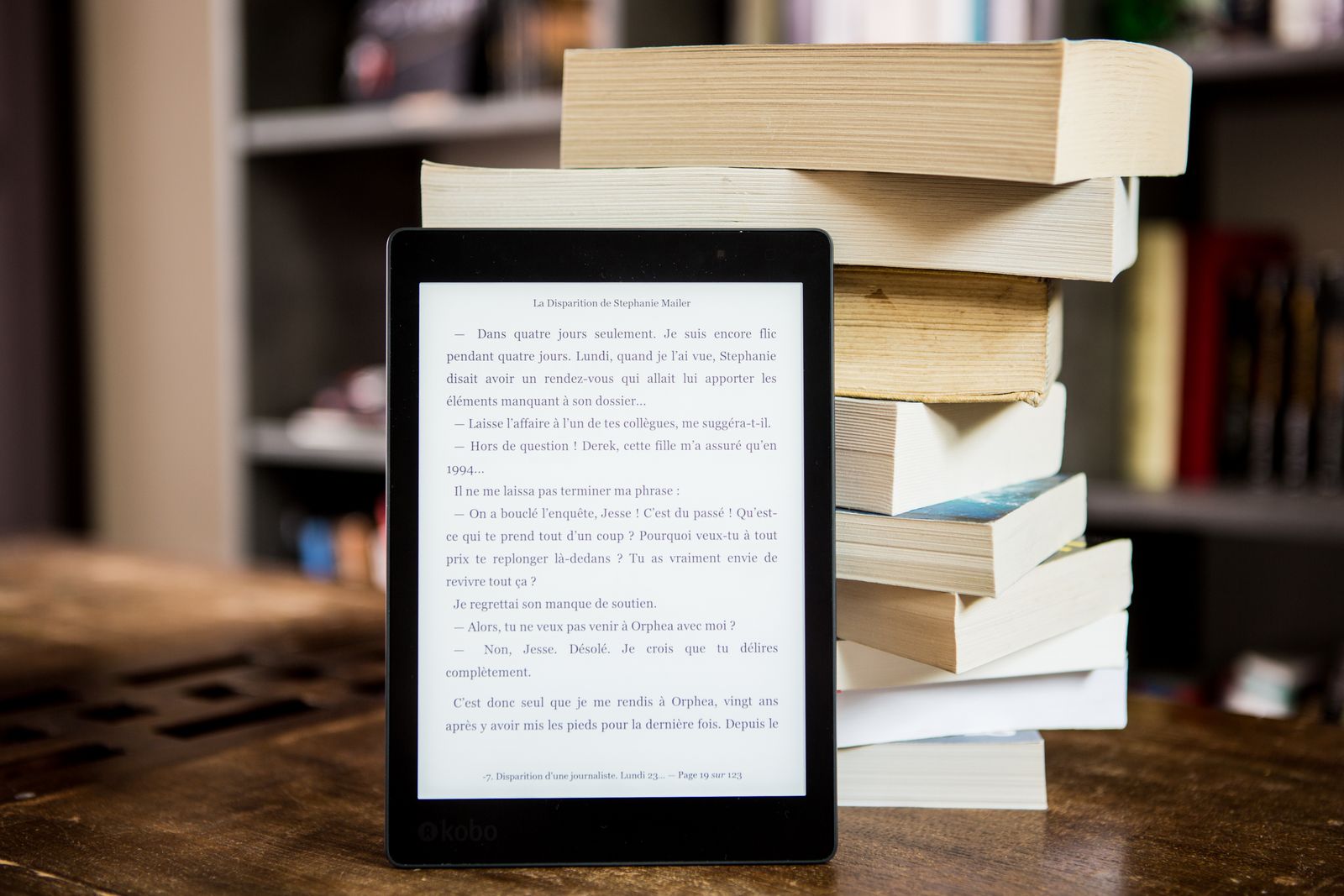
Calibre: a book in one click
Ready to build? The simplest tool is Calibre, a free, open-source ebook manager and converter. It's an all-in-one that does almost everything automatically and is perfect for beginners.
Add the document to the library
Drag your DOCX into the Calibre window — it appears in the book list.
Click "Convert books"
Choose EPUB (or FB2) as the output format. Calibre recognizes your heading styles and builds the table of contents.
Set metadata and cover
In the metadata pane, enter the title, author and description, and upload a cover image.
Done
Click OK — in seconds you have a finished EPUB you can open in any reader.
Calibre's plus is speed and automation. Its minus is that you have almost no control over fine layout. For prose that's usually enough; for complex publications, move on to Sigil.
Sigil: hand-finishing the EPUB
If you want to control every detail, your tool is Sigil. It's not a converter but a full, free EPUB editor. It gives you a split screen: on one side a live preview of the book, on the other its HTML code, which you can edit directly.
Sigil is indispensable when you need to: clean up "junk" code after converting from Word, tune styles by hand, fix complex tables, insert and precisely position images, or build a custom table of contents. It's essentially a workbench where the book is finished to perfection.
A handy workflow is a combo: first quickly build a draft EPUB in Calibre, then open it in Sigil and polish the problem spots. In Sigil the table of contents is built in a couple of clicks via "Tools → Table of Contents → Generate Table of Contents" — it scans the headings and assembles the navigation.
Tip
Don't be afraid of HTML in Sigil. An EPUB is a set of web pages inside, and basic edits (bold, italic, a heading, a chapter break) look extremely simple in the code. Understanding them is like learning five words of a new language.
Pandoc: build it with one command
Love automation and the command line? Then take a look at Pandoc — the "Swiss army knife" of document conversion. It builds an EPUB from DOCX, Markdown and other formats with a single command, and is known for stripping formatting more aggressively than Calibre, producing a very "sterile" EPUB with no Word cruft.
A basic command looks like this:
pandoc manuscript.docx -o book.epub \
  --epub-cover-image=cover.jpg \
  --toc \
  --metadata title="Book Title" \
  --metadata author="Author Name"
Here --epub-cover-image sets the cover, --toc builds the table of contents, and --metadata writes the title and author. Pandoc is especially good for technical books and anyone who writes in Markdown: one line and out comes a finished book. We also have an MD to PDF converter if you need a PDF version too.
Cover, table of contents, metadata
Three things turn "just a file" into a real book. Let's take each one.
The cover is a separate image (JPG or PNG) that you set at build time: in Calibre in the metadata pane, in Pandoc with the --epub-cover-image option. It's what readers see in the reader's library and in the store, so don't neglect it.
The table of contents is built automatically from chapter headings — but only if you marked them up with styles in the source document (remember the first stage?). That's why preparation matters so much: without styles, no tool will produce a table of contents.
Metadata — title, author, language, publisher, description — go into the book's properties. They're not for decoration: readers and stores use them to sort and find your book. Fill them in carefully from the start.
Checking and final formats
Once the book is built, don't rush to hand it out. Open the EPUB in a real reader (Apple Books, PocketBook, a phone app) and flip through it: is the table of contents in place, did images shift, do chapters start on a new page, does the text read well at different font sizes? It's a five-minute check that saves you from embarrassing mistakes.
When your main EPUB is ready and proofread, it's easy to generate the other formats for different needs:
- FB2 — for Russian-language libraries and readers like FBReader (convert it in Calibre too).
- PDF — for print or reading on a big screen with a fixed layout.
- Kindle — just send the EPUB through Send to Kindle and Amazon converts it (details in our Kindle formats guide).
Need a print or PDF version of your book?
The FormatZ converter turns your document into a clean PDF in a couple of seconds — right in your browser, no install. Perfect for sending the book to print or showing it on a big screen.
Make a PDF from a documentWant to dig deeper into book formats and readers? Start with our EPUB vs PDF vs FB2 overview and the guide to Kindle formats. The full list of conversions is on the all formats page.