Photopea vs Photoshop: Can a Free Browser Editor Replace Adobe?
Photoshop is the gold standard, and people pay nearly $23 a month for it. Photopea is a free editor that opens in a browser tab and looks suspiciously like the original. Where's the catch — and can you really drop the subscription? We compare both across seven dimensions, with no bias toward either side.
What Photopea is and where it came from
Let's bust the main myth right away: Photopea is not a pirated Photoshop. It is an independent editor written from scratch by Czech developer Ivan Kutskir. No Adobe code is involved — Photopea simply learned to read and save the PSD format, like many other programs. It's a completely legal free project.
The idea is simple and bold: take the professional editor interface everyone already knows and move it into the browser, so you don't have to pay or install anything. And, credit where it's due, it worked.
In short
Photopea wins on price, accessibility and privacy. Photoshop wins on AI, stability with heavy files, native CMYK for print, and the plugin ecosystem. For most people, free Photopea is enough.
Interface: twins or not
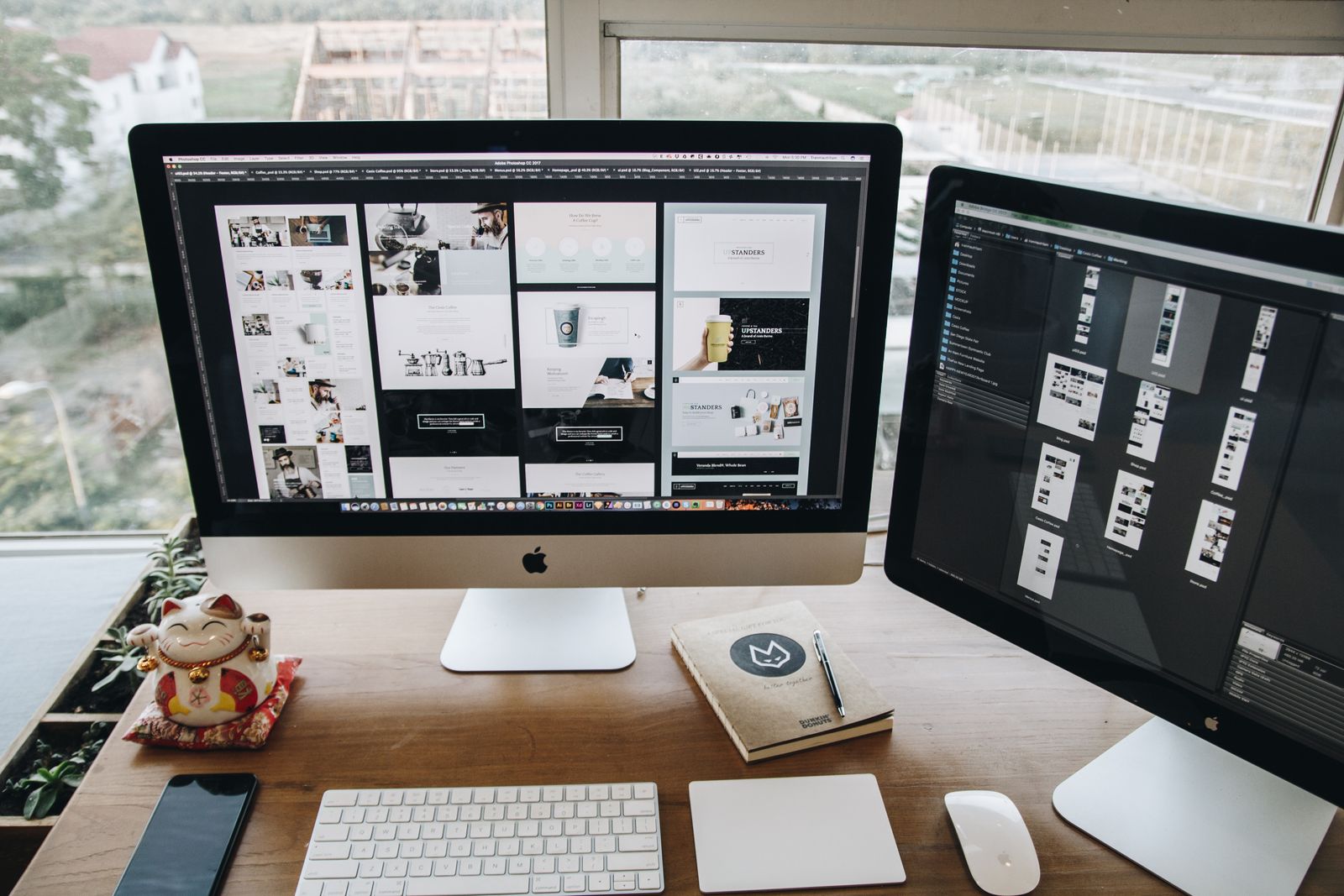
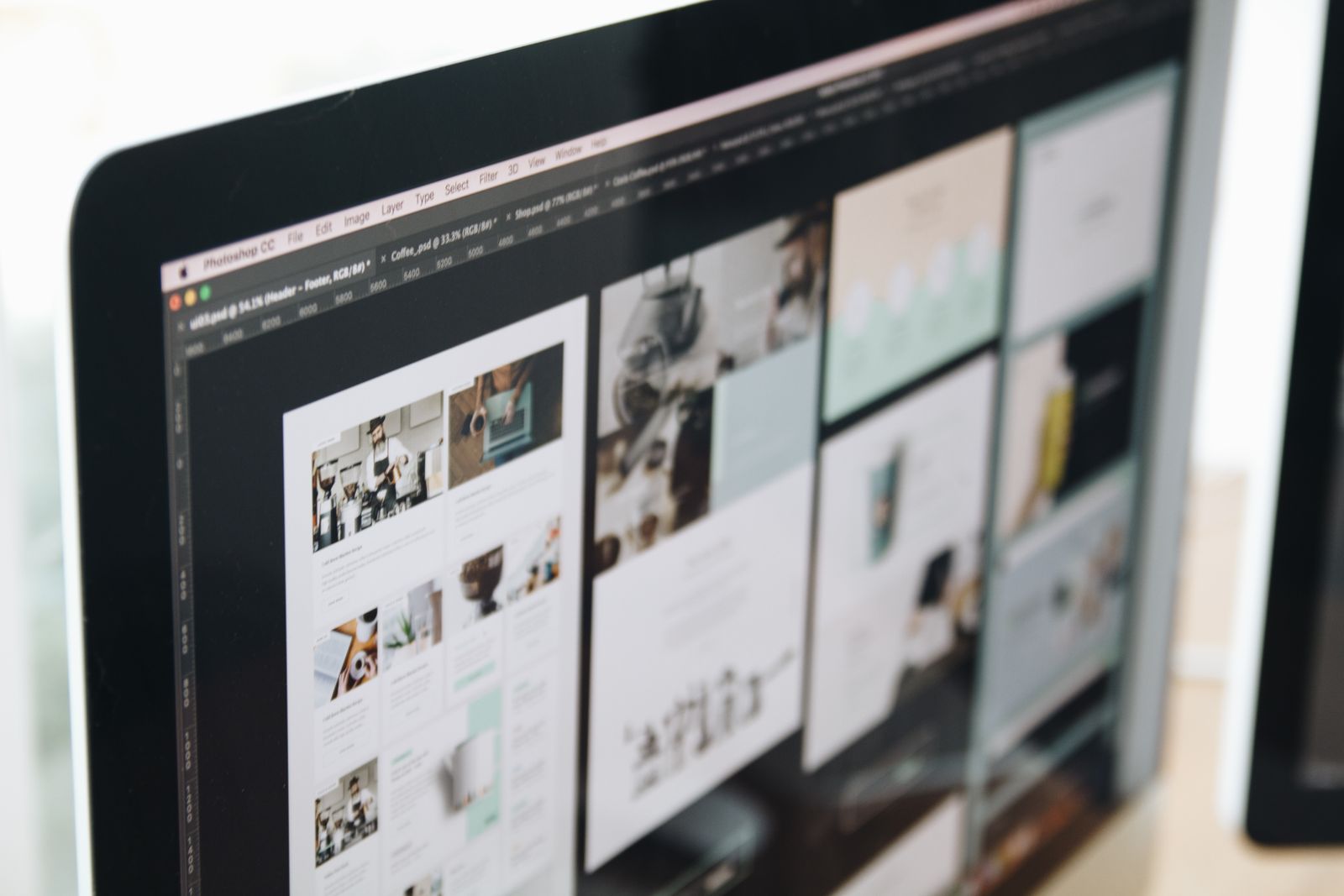
Put Photopea next to Photoshop and at a glance you'll mix them up. The same dark theme, the toolbar on the left, layers on the right, the top menu of "File / Edit / Image / Layer." Most shortcuts match. Anyone who knows Photoshop needs no retraining at all — that may be Photopea's single biggest achievement.
Photoshop is a touch deeper: more granular tool settings, more advanced text and typography, more mature panels. But the core workflow — selection, layers, masks, retouching — is identical in both.
Working with PSD
This is the decisive test for any "Photoshop alternative." And Photopea nearly aces it: it opens PSD with layers, masks, layer styles, smart objects, adjustment layers and most blend modes. Open someone's complex mockup and it renders correctly, effects and all.
On very elaborate files a few specific effects may render slightly differently, but that's the exception, not the rule. Photopea can also save back to PSD with layers preserved.
If you only need to view a PSD
You don't have to open it in an editor at all. If the goal is to see the result or grab an image, it's easier to convert PSD to PNG: the file opens in any viewer. More in our guide "How to open PSD without Photoshop."
Artificial intelligence
Here Photoshop is firmly ahead. Its generative AI — Generative Fill, object removal, neural filters — clearly leads everything else in 2026. That's a real advantage, and it's exactly what many professionals pay the subscription for.
Photopea has AI too: one-click background removal, smart object selection, a basic generative fill. For everyday tasks that's enough, but in quality and "magic," its generation is simpler. If your work revolves around AI editing, Photoshop is objectively stronger.
Performance and limits
Photoshop is a desktop app with direct access to hardware and acceleration. It steadily handles heavy multi-layer files and is built for long sessions. Photopea lives in the browser and is bounded by tab memory: on files over 100 MB or beyond 8000×8000 pixels it starts to lag.
| Criterion | Photopea | Photoshop |
|---|---|---|
| Price | Free | ~$23/mo |
| Install | Not needed | Required |
| PSD support | Near-full | Reference |
| Generative AI | Basic | Leader |
| Heavy files | Lags >100 MB | Stable |
| CMYK for print | Limited | Full |
| Privacy | Local | Local |
Privacy and price
Here Photopea delivers a pleasant surprise. Even though it's an "online editor," your files are never uploaded to a server: everything is processed right inside your own browser, so your files stay on your computer. A confidential photo or document physically never leaves your computer — for privacy that's actually safer than many cloud services.
On price the comparison is clear-cut: Photopea is free and lives on an unobtrusive ad that a $5/month subscription removes. Photoshop requires an Adobe subscription of around $23/month and has no full free version.
Three myths about free editors
A few stubborn misconceptions have built up around Photopea and tools like it. Let's clear them, because they're exactly why people keep paying for a subscription out of habit.
- "Free means my files will leak somewhere." The opposite is true: Photopea computes everything locally in the browser and sends nothing to a server. Plenty of cloud-based online services, on the other hand, do upload your photos.
- "Free editors have no layers or masks." That was true a decade ago. Today Photopea, GIMP and Krita all support full layered editing, masks and blend modes.
- "Professionals don't use them." They do. Photopea is used to fix mockups, GIMP to process photos, Krita for commercial illustration. An Adobe subscription matters where the last few percent of capability count — not for everyday work.
The takeaway is simple: decide "pay or not" based on your real tasks, not on myths. If you open an editor a couple of times a month, there's no reason to overpay.
Verdict: who should use which
Pick Photopea if you're a freelancer, student, blogger or just someone who needs to open a PSD, retouch a photo, build a banner. You save real money each year and get 90% of Photoshop's capabilities with no install.
Stay on Photoshop if you work with very heavy files, prepare files for professional printing (the special colour system, called CMYK, that print shops require), lean heavily on generative AI, or depend on professional plugins. Then the subscription is justified.
Just need to open a PSD without Photoshop?
The FormatZ converter turns a Photoshop file into a plain PNG in a couple of seconds — right in your browser, no install, no sign-up.
Convert PSD to PNGWant to see how Photopea stacks up against GIMP, Krita and Pixlr? See our rundown of free Photoshop alternatives. And if a PSD needs to go to print, PSD to PDF comes in handy. The full list of conversions is on the all formats page.